Hamilton Tony Awards 2025: Original Cast Reunion, 10th Anniversary Performance & Epic Highlights

Introduction
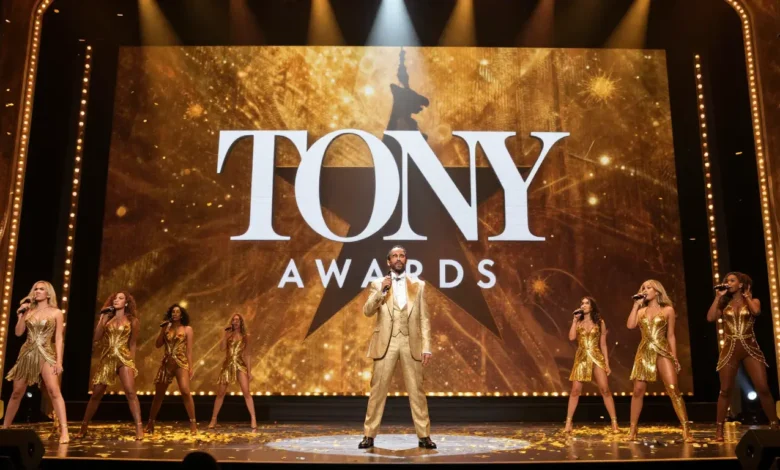
If you love Broadway, June 8, 2025 was a night you will never forget. The 78th Annual Tony Awards at Radio City Music Hall turned into one of the most emotional and electric evenings in Broadway history. Why? Because Hamilton came home.
The Hamilton Tony Awards 2025 reunion was more than a performance. It was a celebration, a milestone, and a love letter to everything this groundbreaking musical has given the world. Ten years after it first shook Broadway to its core, the original cast stepped back into the spotlight and reminded everyone why Hamilton is unlike anything the theater world has ever seen.
In this article, you will get a full breakdown of what happened, who performed, what songs they sang, how the audience reacted, and why this night will go down in Broadway history.
What happened with Hamilton at the Tony Awards 2025?
At the 78th Annual Tony Awards on June 8, 2025, the original Broadway cast of Hamilton reunited at Radio City Music Hall to celebrate the musical’s 10th anniversary. Led by creator Lin-Manuel Miranda, nearly 28 cast members performed a medley of iconic songs including “My Shot,” “The Schuyler Sisters,” and “The Room Where It Happens.” The audience gave them a standing ovation.
Why Was Hamilton Featured at the Tony Awards 2025?
The answer is simple: Hamilton earned it.
When a show changes Broadway forever, you celebrate it. The 10th anniversary of Hamilton’s Broadway debut gave Tony Award Productions the perfect reason to bring the original cast back together for something truly special. There were four big reasons this reunion happened:
- 10th anniversary: Hamilton officially opened on Broadway in August 2015. By June 2025, a decade had passed since it first transformed the stage.
- Broadway legacy: Hamilton did not just succeed. It redefined what a Broadway musical could look and sound like.
- Fan demand: For years, fans around the world had dreamed of seeing the original cast perform together again. The Tony Awards gave them that moment.
- Special tribute: Tony Award Productions called it “an unprecedented moment for Broadway and fans worldwide.” That says it all.
Source:Aresgodofwar
The Original Cast Reunion at Hamilton Tony Awards 2025
This was not just a few familiar faces waving from the stage. This was a full, breathtaking reunion of nearly 28 original cast members. Here is who showed up and made the night unforgettable:
Lin-Manuel Miranda led the entire performance as Alexander Hamilton himself. The creator, composer, and original star brought the energy and passion that started everything a decade ago.
Leslie Odom Jr. returned as Aaron Burr. He had already announced he would be returning to the stage production later in 2025, and this performance served as a thrilling preview of that comeback.
Phillipa Soo reprised her role as Eliza Hamilton, bringing grace and emotional depth to every moment she was on stage.
Renée Elise Goldsberry stepped back into the shoes of Angelica Schuyler and also co-hosted the Tony Awards pre-show, making her one of the biggest stars of the entire evening.
Daveed Diggs brought the house down. In his own words, he told People: “That group of people is pretty singular. I’ve never been in a room like it.”
Jonathan Groff returned as King George III, delivering the kind of wry, scene-stealing performance that made audiences fall in love with him in the first place.
Christopher Jackson reprised his role as George Washington with the commanding presence fans remembered so well.
Jasmine Cephas Jones, Okieriete Onaodowan, and Anthony Ramos all joined the stage, completing the core ensemble that made the original production so special.
Also in attendance were Ariana DeBose, Javier Muñoz, Stephanie Klemons, Sydney James Harcourt, Emmy Raver-Lampman, and more. In total, 28 members of the original company came together for this landmark performance.
Emmy Raver-Lampman captured the feeling perfectly. She said: “It was the most heartwarming, beautiful reunion of just 28 people that we love so much in a room.”
Highlights of the Hamilton Tony Awards 2025 Performance
Songs Performed
The cast delivered a medley of the most iconic songs from the show. They performed:
- “My Shot” — the anthem that opened the performance and sent the crowd into a frenzy
- “The Schuyler Sisters” — Renée Elise Goldsberry, Phillipa Soo, and Jasmine Cephas Jones brought their signature harmonies back to life
- “You’ll Be Back” — Jonathan Groff’s comedic, unforgettable King George moment
- “Guns and Ships” — Daveed Diggs delivered at full speed, reminding everyone why that rap verse is legendary
- “The Room Where It Happens” — Leslie Odom Jr. owned the stage
- “History Has Its Eyes on You” — a deeply emotional close to the medley
aresgodofwar.co.uk
Stage Production and Choreography
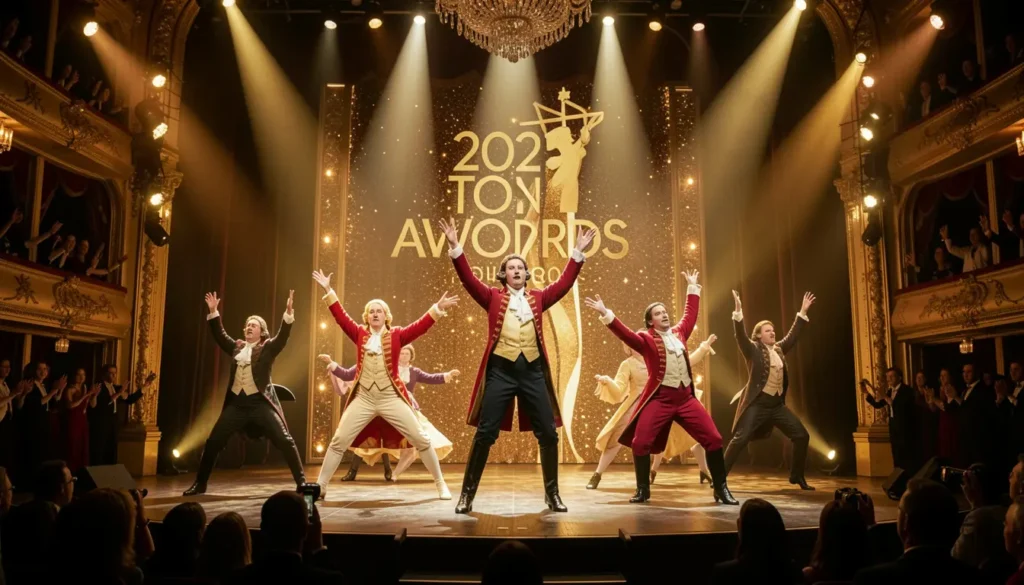
The cast dressed in their original Act One costumes, a detail that thrilled fans immediately. The choreography, originally created by Andy Blankenbuehler, was crisp, powerful, and deeply familiar. Watching those signature movements again after ten years gave the performance an almost cinematic quality. The lighting and staging matched the energy of the original Broadway production, creating a sense of stepping back in time.
Audience Reaction and Standing Ovation
The crowd at Radio City Music Hall erupted throughout the performance. By the time the medley concluded, the entire audience rose to their feet for a thunderous standing ovation. People were in tears. Celebrities in the front rows could not hide their emotions. Even those watching at home reported chills.
Social Media Buzz
Within minutes of the performance airing, Hamilton was trending across every major social platform. The official Hamilton musical account posted on X (formerly Twitter): “Inimitable. The original. #Hamilton.” Clips from the performance spread rapidly, and fans around the world flooded social media with their emotional reactions. It was one of the most talked-about moments of the 2025 award season.
Hamilton’s Tony Awards History
To understand why the Hamilton Tony Awards 2025 reunion meant so much, you need to know what this show accomplished ten years ago.
Hamilton made its Broadway debut in August 2015 and immediately became a cultural phenomenon. At the 2016 Tony Awards, it shattered records with 16 nominations, the most in Tony Awards history at the time. It walked away with 11 wins, including the prestigious Best Musical award.
But the accolades did not stop there. Hamilton also won:
- The Pulitzer Prize for Drama — a rare achievement for a Broadway musical
- The Grammy Award for Best Musical Theater Album
- The Olivier Award in London
- A special citation from the Kennedy Center Honors
Its original cast album became the first in history to be certified Diamond by the RIAA. It also became the first cast album to spend 500 weeks on the Billboard 200. In 2025, the album was inducted into the National Recording Registry.
These are not just numbers. They tell the story of a show that moved an entire culture.
Audience and Critics’ Reactions
Broadway fans and critics alike called the Hamilton cast performance 2025 one of the greatest moments in Tony Awards history.
Broadway fans who attended the ceremony described the night as surreal. Many had seen Hamilton during its original run and said watching the reunion felt like reliving one of the best nights of their lives.
Critics praised the performance for its energy, precision, and emotional resonance. Several noted that even after ten years, the original cast had lost none of their fire. The chemistry between the performers was electric from the very first note.
Media coverage was massive. Every major entertainment outlet ran features on the reunion. ABC News, Playbill, Broadway.com, Billboard, and dozens more covered the event in depth. The Hamilton musical anniversary dominated entertainment news for days after the ceremony.
Trending discussions online focused on specific moments: Daveed Diggs delivering “Guns and Ships” at full speed, Jonathan Groff’s cheeky King George return, and Lin-Manuel Miranda’s visible emotion throughout the performance.
Hamilton’s Lasting Impact on Broadway
The Hamilton Tony Awards 2025 performance was not just a reunion. It was a reminder of how much this show changed Broadway forever.
Diversity: Hamilton cast performers of color in roles of America’s Founding Fathers, sparking a vital and ongoing conversation about representation on the Broadway stage.
Storytelling: Lin-Manuel Miranda proved you could tell a complex historical story in a fresh, modern, accessible way without losing depth or authenticity.
Hip-hop influence: Before Hamilton, hip-hop on Broadway was rare. This show made it central and showed that the genre could carry the emotional weight of a full theatrical narrative.
Education: Hamilton inspired the “EduHam” program, which brought school students to see the show for free and used it as a tool to teach American history. Tens of thousands of students benefited from this initiative.
Pop culture: Hamilton references entered everyday conversation. “My Shot,” “The Room Where It Happens,” and “I am not throwing away my shot” became phrases millions of people recognize, whether they saw the show or not.
Conclusion
The Hamilton Tony Awards 2025 performance was exactly what Broadway fans needed. It reminded you that some moments in theater are so powerful, so perfectly crafted, that they live on for decades. Ten years after it first changed everything, Hamilton proved it still has the ability to stop the world and make people feel something real.
If you watched the performance, you already know. If you missed it, clips are circulating everywhere, and they are worth every minute of your time.
What was your favorite moment from the Hamilton reunion at the Tony Awards 2025? Did Jonathan Groff’s King George make you laugh, or did “My Shot” give you chills? Share your thoughts below and let the conversation continue.
Frequently Asked Questions
1. What is Hamilton about? Hamilton is a Broadway musical by Lin-Manuel Miranda that tells the story of American Founding Father Alexander Hamilton. It uses hip-hop, R&B, jazz, and musical theater to bring 18th-century American history to life in a fresh and powerful way.
2. When did the Hamilton reunion happen at the Tony Awards 2025? The reunion took place on June 8, 2025, at the 78th Annual Tony Awards, held at Radio City Music Hall in New York City.
3. Who performed at the Hamilton Tony Awards 2025 reunion? Nearly 28 original cast members performed, including Lin-Manuel Miranda, Leslie Odom Jr., Phillipa Soo, Renée Elise Goldsberry, Daveed Diggs, Jonathan Groff, Christopher Jackson, Jasmine Cephas Jones, Ariana DeBose, Anthony Ramos, and many more.
4. What songs did Hamilton perform at the 2025 Tony Awards? The cast performed a medley that included “My Shot,” “The Schuyler Sisters,” “You’ll Be Back,” “Guns and Ships,” “The Room Where It Happens,” and “History Has Its Eyes on You.”
5. How many Tony Awards did Hamilton win in 2016? Hamilton received a record-breaking 16 Tony Award nominations in 2016 and won 11, including Best Musical.
6. Did Hamilton win the Pulitzer Prize? Yes. Hamilton won the Pulitzer Prize for Drama, which is a rare and significant achievement for a Broadway musical.
7. Is Leslie Odom Jr. returning to Hamilton? Yes. It was announced that Leslie Odom Jr. will return to the stage production of Hamilton in the fall of 2025 for a limited run, reprising his original role as Aaron Burr.
8. Where can I watch the Hamilton Tony Awards 2025 performance? The 78th Annual Tony Awards aired live on CBS and streamed on Paramount+ in the United States. Clips of the performance are also widely available on social media platforms and entertainment news sites.
9. Who hosted the 2025 Tony Awards? The 78th Annual Tony Awards were hosted by Cynthia Erivo, a Tony, Emmy, and Grammy Award winner and three-time Oscar nominee.
10. What impact did Hamilton have on Broadway? Hamilton transformed Broadway by introducing hip-hop as a central theatrical language, championing diversity in casting, and inspiring a generation of new theatergoers. It also launched education programs that gave thousands of students free access to Broadway.
About the Author
Jordan Blake is a Broadway enthusiast and entertainment writer with over eight years of experience covering theater, music, and pop culture. A lifelong fan of musical storytelling, Jordan has followed Hamilton since its off-Broadway debut and writes with a deep passion for the magic of live performance.